188 Enforcement Actions in the U.S. over past 30 days

-
FINRA enforcements decreased 70% over the past 30 days
-
SEC issued enforcements: $289,563,885 over the past 30 days
-
161 Final Rules go into effect in the next 30 days
-

66 Mortgage Lending docs published in the last 7 days

-
1460 docs with 2637 extracted obligations from the last 7 days
-

new Proposed and Final Rules were published in the past 7 days

-

50896 new docs in pro.compliance.ai within the last 7 days

-
Considering RCM Solutions?  Here's an RFP to get started.
-

All Courses > Notifications & Alerts

Notifications & Alerts

Monitor regulatory content and news by creating custom alerts. You can add any number of custom alerts based on search criteria to identify specific sets of documents that impact your business. Once you’ve established your alerts, you won’t need to search again because you’ll be notified automatically once new documents that meet your alert criteria are published.

Need help defining alerts for critical aspects of financial product, operational, risk and compliance management? Try using Compliance.ai’s out-of-the box Concept alerts. Select the Concepts that are of interest to you in Default Filters > Topics, then access on the Concepts tab within Notifications.

Creating a New Alert

Step 1:

Select Filter in the search bar and enter search criteria using parameters such as Agency, Jurisdiction, Dates, and free text entry fields such as Title and Full Text, then click Search.
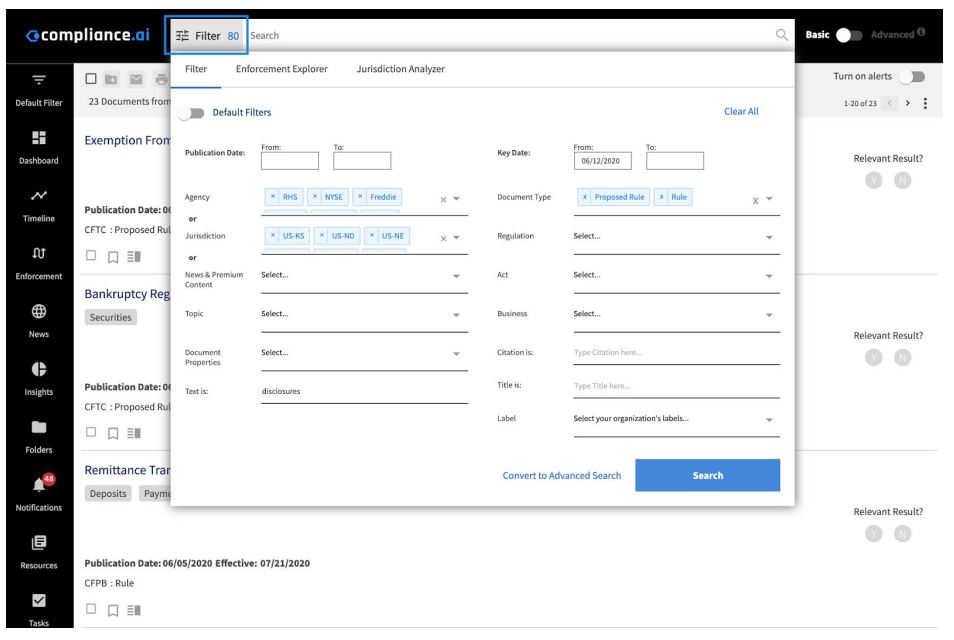
FilterPlease refer to our Basic and Advanced Search Guide for tips on how to optimize your search results.

Step 2:

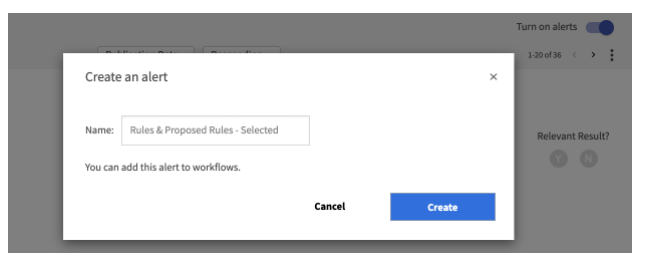
Check your search results, and once you’re satisfied that you’re receiving the expected results, click “Turn on Alerts” located to the right, below the Search Bar.

Turn on Alerts

Please note: Depending on your search and filter criteria, there might not be any documents listed, yet. This can happen, for example, for new regulatory topics and upcoming legislation. However, if you are expecting some results to be shown, then it is likely you have a conflicting item selected in your filter.

For example: If you select Document Type “Rule” and conduct a Title search for something that is currently only a Proposed Rule, no results will be returned. Once the Rule is published, you will receive an alert.

Step 3:

Save your Search and click “Create.” Then save the alert. It will automatically be populated with the keywords listed in the Search bar, you can rename the alert without affecting the search criteria.

Saving an Alert

Step 4:

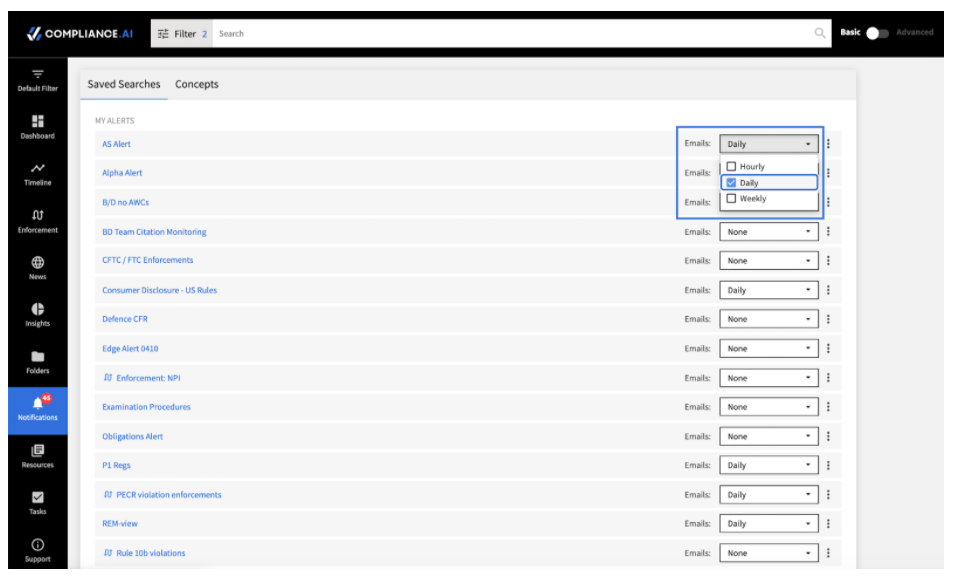
Next, you can update the frequency of your notifications via the hyperlink in the confirmation or by selecting the Notifications tab.

Alerts with ConceptsFrom the Notifications tab, find the alert you created and use the dropdown menu to select the frequency of your email notification. You can also choose to not be notified by email, simply deselect all.
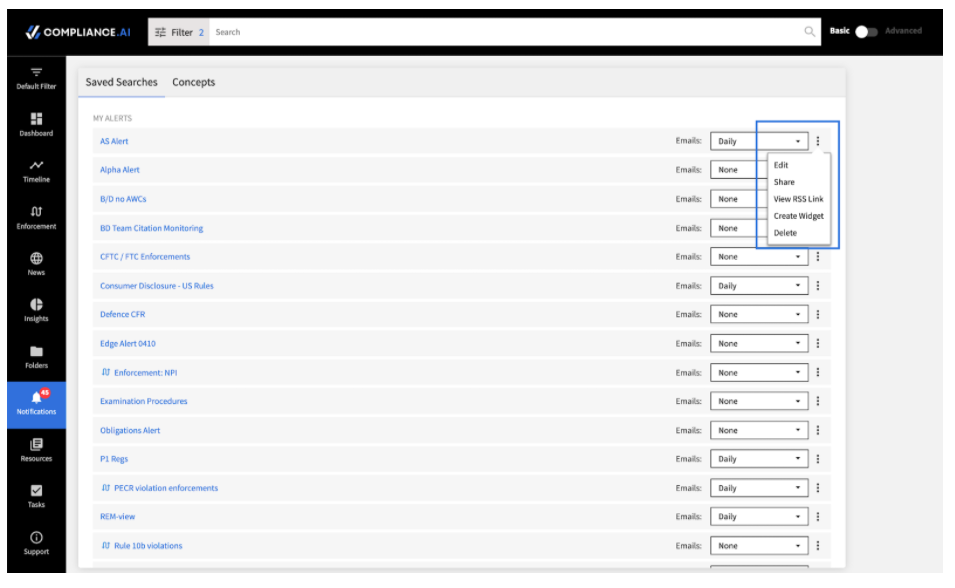
  • Hourly: updates you within an hour after the document is added in the product.
  • Daily: sends you a summary of any new content at the end of the day.
  • Weekly: sends you a summary of any new documents published over the past 7 days. Weekly email summaries are sent on Wednesdays.

Common ways to use Compliance.ai’s Alerts and Notifications

  1. Email Alerts: Rely on email alerts to indicate when you need to log into the product to review new relevant documents.
  2. Sharing Alerts: You can share alerts with other members of your team so that you can all receive notifications and leverage the same set of saved searches. (Please note, this is limited to individuals within your organization who have a Compliance.ai login ID.)
  3. Create your own Dashboard Widget: You can create your own custom dashboard widget for any alert. Simply click the three dot more features icon for the alert and choose “Create Widget”. A new widget will be automatically added to your dashboard. The widget is automatically kept in sync with any changes you make to the alert, so once it’s been added, it’s always up-to-date.
  4. RSS Feed: Team Edition users have access to RSS links for alerts. You can use these links to review resulting documents in popular RSS reads or to integrate with many platforms you may use in your organization such as your GRC or document management system. Access the RSS link for an alert by clicking more features icon for the preferred alert. See information about our Developer Program for more information on integrations.
  5. Product Notifications: Log into the product on a regular basis and manually check for updates. The red “NEW” flag means that new documents have been added since you last accessed the notification.
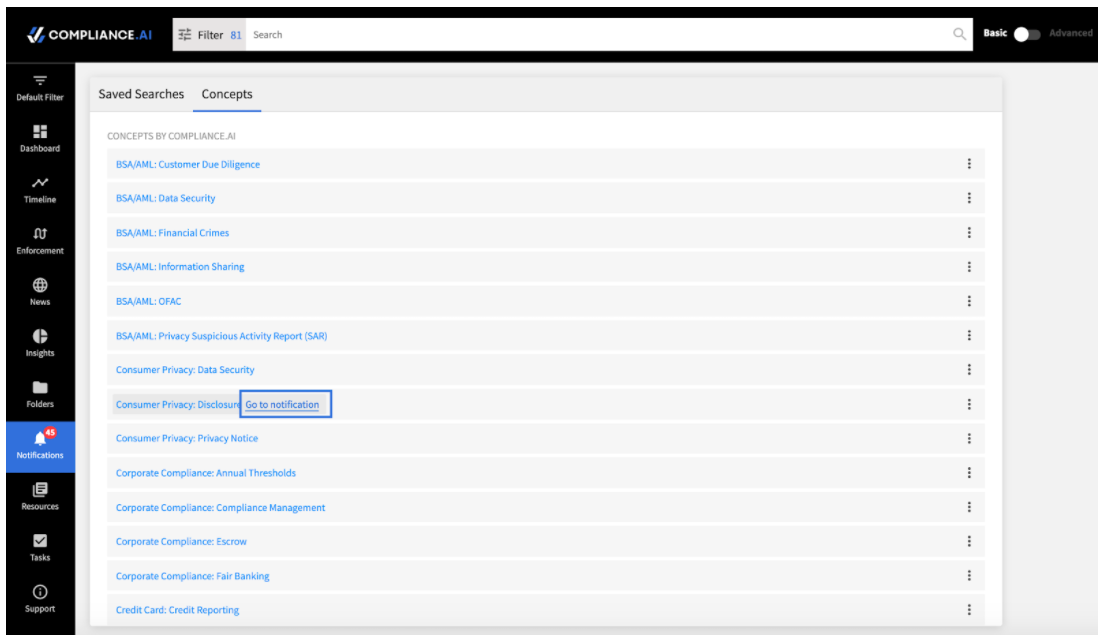
  6. Saved Searches: You can also treat your alerts as saved searches. Simply hover over the name of the alert and click the Go to notification link to search.

Uses for Compliance.ai AlertsEditing your Alert

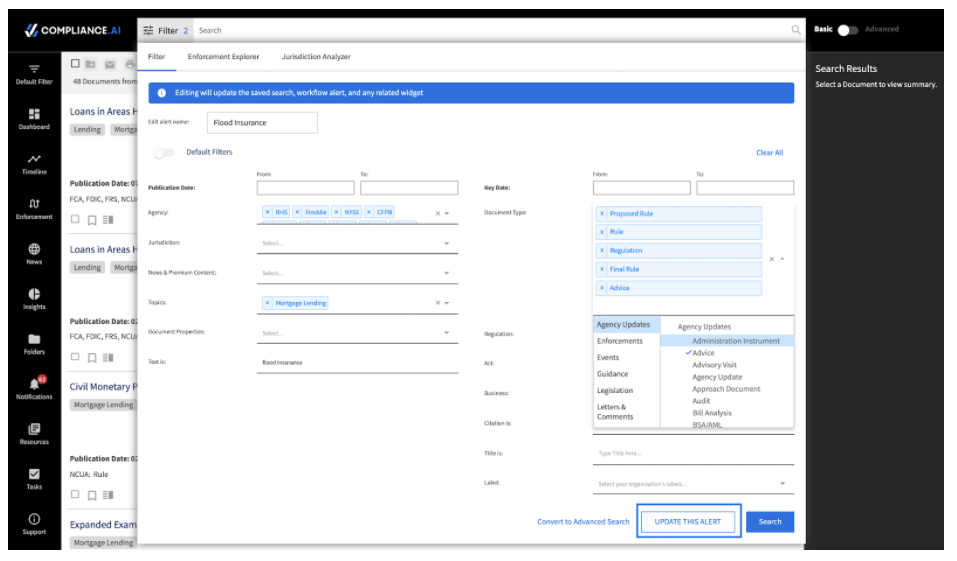
You can change your alert parameters at any time by clicking the three dot “more features” icon next to any alert. This will direct you to filters. Simply modify your filters and other search parameters as needed and click “Update this Alert”.

Editing an Alert

Using Compliance.ai Concepts

Access the Concepts you selected within Default Filters > Topics. Select Go to Notification to search using your preferred concept. You can customize the concept to meet your specific needs by opening the filter, and adding the jurisdictions, agencies, or document types that are relevant to you.

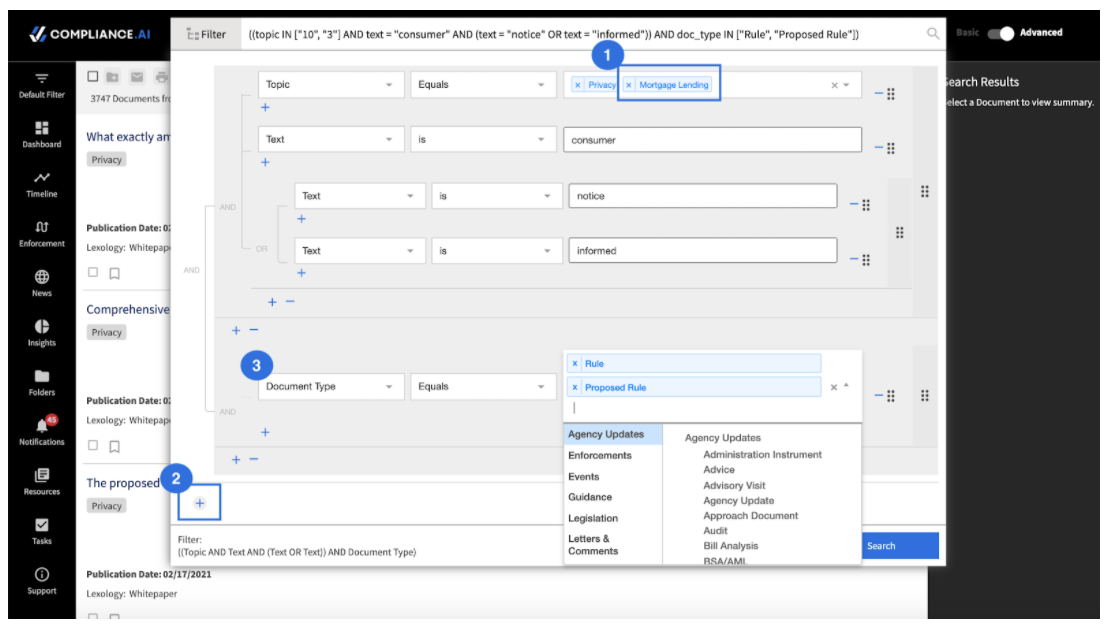
Click on ConceptExample: Modifying a Compliance.ai Concept for your business needs. Create your own Consumer Privacy – Data Security: Disclosure alert focused on Rules and Proposed rules for mortgage lending.
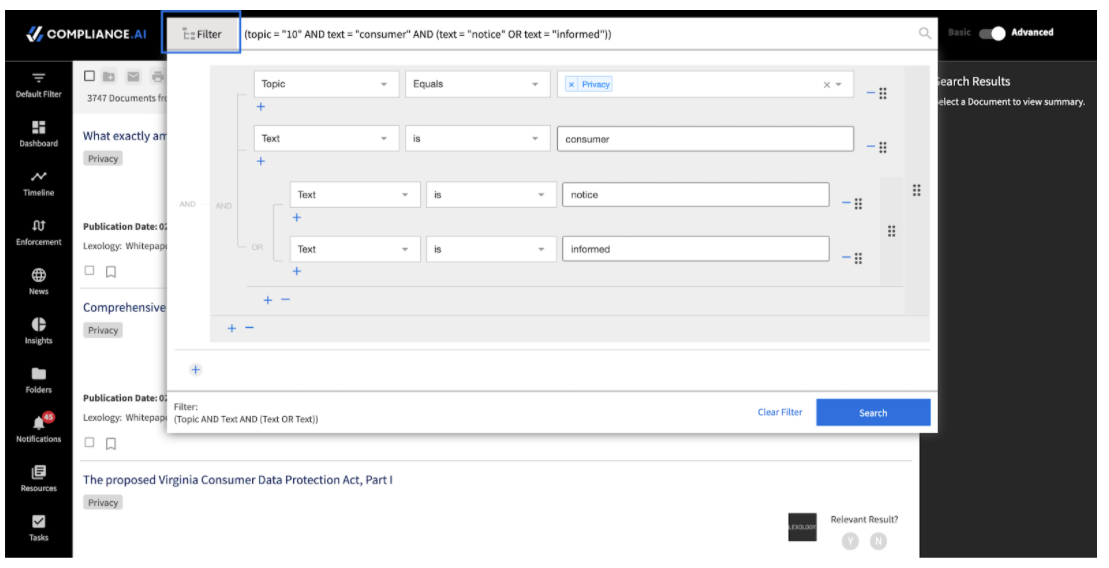
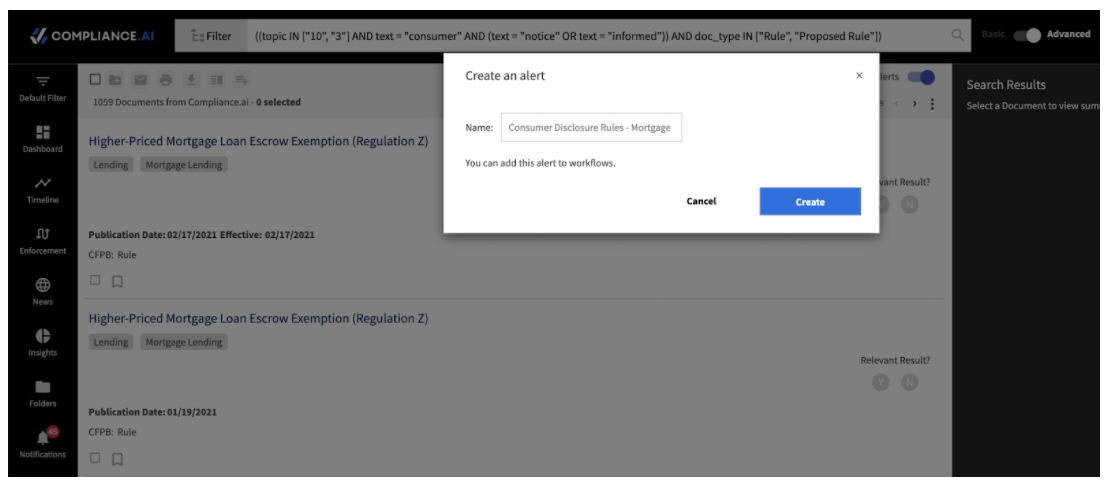
Step 1: Click Go to notification for the Consumer Privacy: Disclosure Concept to search, then open the Filter. This will give you an understanding of the baseline concept.

Concept Filters

Step 2: Click the “+” to add additional filters or modify the additional filters. In this case, add “Mortgage Lending” as an additional topic, then click “+” to add Document Types = Rule and Proposed Rule.

Step 3: Click Search, then Turn on Alert to create your own custom concept alert.

Creating a Concept Filter